Q: How do I move text into a certain column location without disturbing any text beyond it?
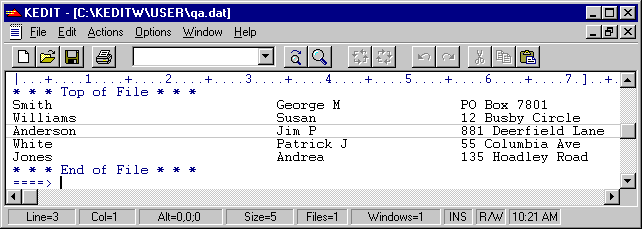
Specifically, I have an employee information file comprised of one employee record per line. This file lists first names beginning in column 34. Some of these names are followed by a blank and then a middle initial. I want all of the middle initials to line up in column 55 but I don't want to disturb any text in columns 57 and beyond. So my original file looks something like this:
(Note: SET SCALE ON is in effect here so that the column locations of the data are easier to view.) What I want is for my data to end up looking like this (without editing it manually a line at a time):
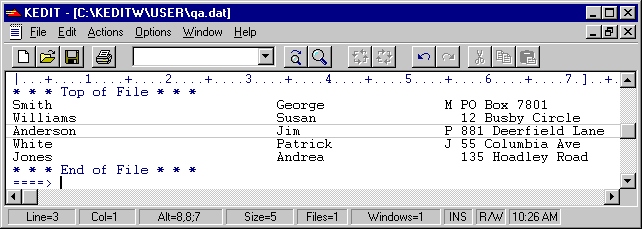
A: Here's how to use KEDIT's SET TRUNC command for this type of task.
To temporarily protect the data from column 57 out we'll issue the command SET TRUNC 56 from the KEDIT command line. This sets the KEDIT "truncation column" which is normally the same as the WIDTH setting. This prevents any of the data in columns 57 out from being edited but we are free to change the text in columns 1 through 56.
Since we are only interested in the text starting in column 34 we'll issue the command SET ZONE 34 * from the command line. We'll need to use wildcard specifications in the next command so click on Options/SET Command... and select ARBCHAR. Be sure that the Use Wildcard Characters check box is checked and that the Match Zero or More Chars character is a dollar sign ($). Now we'll change the first occurrence of a blank on each line to a tab character with this command:
c/$ /$/ all 1
What is the funny rectangular character in the middle of the above command? It's a tab character which has an ASCII code of 9. The way you enter this is to hold down the Alt key, type in 0 and then 9 on the numeric keypad and then release the Alt key.
This CHANGE command will change anything followed by a blank to the same thing followed by a tab character. This will occur on all lines of the file but only the first occurrence on each line. Since we have the left zone set to 34 this will only affect the name field. After this command is issued the file looks like this:
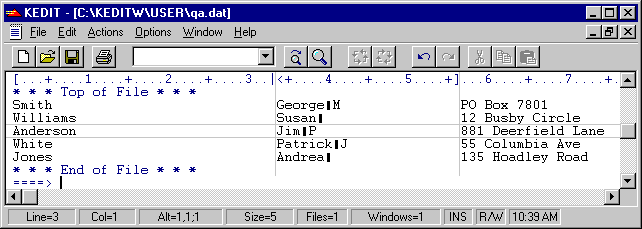
Now we issue the command SET TABS 55 followed by EXPAND ALL. The EXPAND command shoves the initials over to column 55 and the tab characters themselves are removed. There will be a message displayed about lines being truncated but this can be ignored since it has to do with trailing blanks. Now we just need to reset the truncation column and zones to get back to normal. We issue these commands:
set trunc *
set zone 1 *
and we're done!